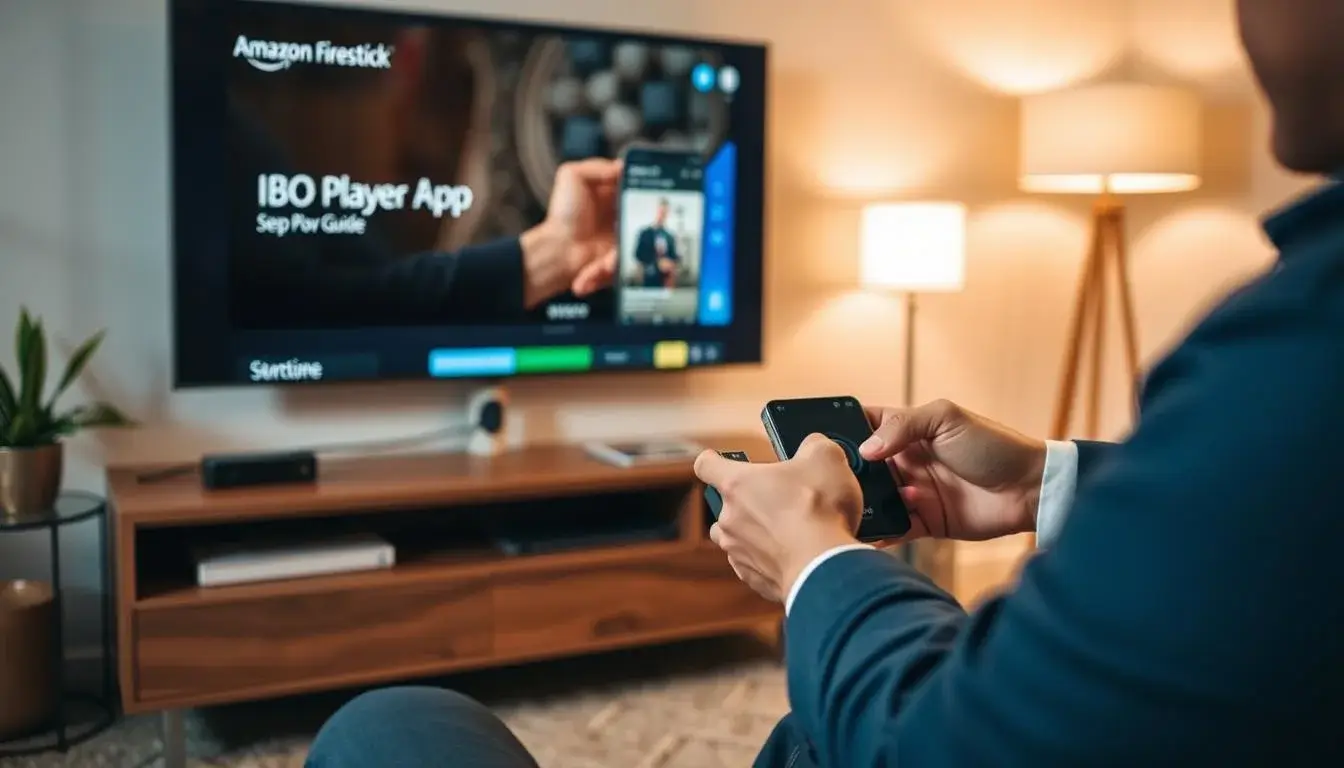
Are you ready to elevate your streaming experience? Setting up the IBO Pro Player App on your Firestick device is a straightforward process that unlocks a world of entertainment options. With a range of pricing plans to suit your needs, you can enjoy seamless access to your favorite content.

Edit
Full screen
Delete
HOW TO SETUP OUR SERVICE ON FIRESTICK IBO PRO PLAYER APP
Flexible pricing plans are available, including 1 Month for 20€, 3 Months for 35€, 6 Months for 45€, and 12 Months for 65€. This means you can choose the plan that best fits your viewing habits and budget.
By following this guide, you’ll be able to easily set up the IBO Pro Player App on your Firestick and start enjoying your favorite shows and movies.
Key Takeaways
- Simple setup process for IBO Pro Player App on Firestick
- Flexible pricing plans to suit your viewing needs
- Access to a wide range of entertainment content
- Easy to follow guide for a seamless experience
- Multiple subscription options available
Understanding the IBO Pro Player App
The IBO Pro Player App is designed to provide Firestick users with a seamless entertainment experience. It’s a media player application that allows users to stream their favorite content directly to their TVs.
What is IBO Pro Player App?
The IBO Pro Player App is a sophisticated media player that enables users to access a wide range of content, including live TV, movies, and on-demand shows. This app is optimized for Firestick devices, ensuring a smooth and efficient viewing experience. With its intuitive interface, users can easily navigate and find the content they want to watch.

Edit
Full screen
Delete
IBO Pro Player App
Benefits of Using IBO Pro Player on Firestick
Using the IBO Pro Player App on your Firestick offers several benefits. Firstly, it provides access to a vast library of content, including live sports, news, and entertainment programs. Secondly, the app is designed to be user-friendly, making it easy to navigate and find what you’re looking for. Additionally, the IBO Pro Player App is regularly updated with new features and content, ensuring that users have the best possible viewing experience.
By installing the IBO Pro Player App on your Firestick, you can enhance your overall viewing experience. The app’s performance is optimized for Firestick devices, providing a stable and reliable connection to your favorite content.
Before You Begin: Requirements for Installation
Before installing the IBO Pro Player App on your Firestick, it’s essential to ensure your device meets the necessary requirements. This step is crucial for a smooth and successful installation process. By verifying that your device is compatible, you’ll avoid potential issues during setup.
Hardware Requirements
To run the IBO Pro Player App on your Firestick, you’ll need a device with sufficient hardware capabilities. The recommended hardware requirements include a Firestick device with at least 1GB of RAM and a dual-core processor. Ensure your Firestick is one of the supported models, such as the Firestick 4K or Firestick 4K Max, to guarantee optimal performance.
Internet Connection Requirements
A stable internet connection is vital for the IBO Pro Player App to function correctly. You’ll need a reliable internet connection with a minimum speed of 10 Mbps for standard definition content and 25 Mbps for high definition content. Consider using a wired Ethernet connection for a more stable experience, especially if you’re planning to stream high-definition content.
It’s also recommended to check your internet service provider’s data caps and speeds to ensure they meet the app’s requirements.
Account Prerequisites
To use the IBO Pro Player App, you’ll need to have an active account with our service. If you haven’t already, sign up for an account on our website to obtain the necessary credentials. You’ll need to provide a valid email address and create a password to access the service.
Once you have your account credentials, you’ll be ready to proceed with the installation and configuration of the IBO Pro Player App on your Firestick.
Preparing Your Firestick Device
Before you start installing the IBO Pro Player App on your Firestick, it’s essential to prepare your device for a seamless experience. This involves a few straightforward steps that ensure your device is ready for the installation and subsequent use of the app.
Checking for System Updates
To begin, you need to ensure your Firestick is running the latest software. Checking for system updates is crucial as it provides the latest features and security patches. To do this, navigate to the settings menu on your Firestick, select “My Fire TV” or “Device,” and then choose “About.” Here, you will find the option to check for system updates. If an update is available, follow the on-screen instructions to download and install it.
Keeping your Firestick updated is vital for maintaining optimal performance and ensuring compatibility with the latest apps.
Enabling Apps from Unknown Sources
Since the IBO Pro Player App is not available on the Amazon Appstore, you need to enable the installation of apps from unknown sources. To do this, go to the settings menu, select “My Fire TV” or “Device,” and then “Developer options.” Here, you will find the toggle to enable “Apps from Unknown Sources.” Be cautious when enabling this setting, as it can potentially expose your device to security risks if not managed properly.
“Enabling apps from unknown sources can be a security risk if not done carefully. Ensure you only download apps from trusted sources.”
Clearing Cache for Optimal Performance
Clearing the cache on your Firestick can help improve its performance by removing temporary files that are no longer needed. To clear the cache, go to the settings menu, select “Applications,” and then “Manage Installed Applications.” Choose the app for which you want to clear the cache and select “Clear Cache.” Repeat this process for any other apps you wish to clean up.
| Step | Description |
| 1 | Navigate to Settings |
| 2 | Select Applications |
| 3 | Manage Installed Applications |
| 4 | Clear Cache for desired apps |
Downloading and Installing IBO Pro Player App
To start streaming with IBO Pro Player, you need to download and install the app on your Firestick. This process is straightforward and can be completed in a few steps. You have two methods to choose from: using the Downloader App or using the App Store. Both methods are effective, and the choice depends on your preference.
Using the Downloader App Method
The Downloader App is a popular tool for installing apps on Firestick. To use this method, follow these steps:
- First, go to the Firestick home screen and search for the Downloader App. If you don’t have it, download and install it.
- Open the Downloader App and click on the “Browser” tab.
- Enter the URL where the IBO Pro Player App is hosted.
- Click on “Download” to start the download process.
- Once the download is complete, click on “Install” to install the app.
Benefits of Using Downloader App: It allows you to install apps not available in the App Store, and it’s a straightforward process.
Using the App Store Method
If the IBO Pro Player App is available in the App Store, you can install it directly. Here’s how:
- Go to the Firestick home screen and navigate to the App Store.
- Search for “IBO Pro Player App”.
- If found, click on the app, and then click on the “Download” or “Get” button.
- Wait for the app to download and install.
Note that the availability of the IBO Pro Player App in the App Store may vary.
By following either of these methods, you should be able to successfully download and install the IBO Pro Player App on your Firestick. Ensure you have a stable internet connection throughout the process.
How to Setup Our Service on Firestick IBO Pro Player App
Setting up our service on the IBO Pro Player App is a straightforward process that requires a few simple steps. To begin, ensure that you have successfully installed the IBO Pro Player App on your Firestick device, as covered in the previous section.
Launching the IBO Pro Player App
To start setting up our service, you first need to launch the IBO Pro Player App on your Firestick device. Navigate to the “Your Apps & Channels” or “Apps” section on your Firestick home screen, find the IBO Pro Player App, and click on it to launch.
Navigating the App Interface
Once the app is launched, you will be presented with its user interface. The IBO Pro Player App is designed to be user-friendly, with intuitive navigation. You will see various sections such as “Home,” “Live TV,” “Movies,” and “Settings.” Take a moment to familiarize yourself with these options.
Entering Service Credentials
After navigating through the app interface, you will need to enter your service credentials to activate our service. Go to the “Settings” section, usually represented by a gear icon, and look for the “Account” or “Subscription” details. Here, you will be required to input your username and password. Ensure that you enter the correct credentials to avoid any authentication errors.
As emphasized by industry experts, “Properly configuring your streaming service is crucial for a seamless viewing experience.”
“The key to enjoying uninterrupted streaming lies in the correct setup of your service credentials and understanding the app’s interface.”
To summarize, setting up our service on the IBO Pro Player App involves launching the app, navigating its interface, and entering your service credentials. Below is a summary table:
| Step | Description |
| 1 | Launch the IBO Pro Player App on your Firestick. |
| 2 | Navigate through the app’s interface to understand its features. |
| 3 | Enter your service credentials in the “Settings” section. |
By following these steps, you should be able to successfully set up our service on the IBO Pro Player App on your Firestick device.
Configuring Settings for Optimal Performance
For a seamless viewing experience with the IBO Pro Player App on Firestick, adjusting the app’s settings is essential. The app provides various options to customize your viewing experience according to your preferences.
Video Playback Settings
Navigating to the video playback settings allows you to adjust the quality of the video streaming. You can choose from various resolutions such as 720p, 1080p, or even 4K if your internet connection supports it. Selecting the appropriate resolution enhances the viewing experience and prevents buffering issues.
To adjust the video playback settings, go to the app’s settings menu, select “Video Settings,” and choose your preferred resolution. It’s also advisable to enable the “Auto” mode, which automatically adjusts the resolution based on your internet speed.
Audio Settings
The IBO Pro Player App also allows you to customize the audio settings to suit your preferences. You can adjust the audio quality, choose your preferred audio language, and even enable or disable subtitles. Customizing these settings can significantly enhance your overall viewing experience.
To access the audio settings, navigate to the “Audio Settings” section within the app’s settings menu. Here, you can select your preferred audio format and language, as well as configure subtitle settings.
Buffer and Cache Settings
Buffer and cache settings play a crucial role in ensuring smooth playback. Adjusting these settings can help prevent buffering issues and improve overall performance. The table below illustrates the different buffer and cache configurations available in the IBO Pro Player App.
| Setting | Description | Recommended Value |
| Buffer Size | Determines how much data is buffered before playback starts | Medium |
| Cache Size | Controls how much data is cached during playback | High |
To adjust the buffer and cache settings, go to the “Buffer and Cache Settings” section within the app’s settings menu. Setting the buffer size to “Medium” and cache size to “High” is generally recommended for optimal performance.
Subscription Plans and Pricing
To unlock the full potential of the IBO Pro Player App, you’ll need to choose a subscription plan that suits your needs.
Our service is designed to provide a seamless streaming experience, and the right subscription plan can enhance this experience.
Available Subscription Options
We offer a variety of subscription plans designed to cater to different viewing preferences. Our plans are flexible and affordable, ensuring that you get the best value for your money when configuring your firestick service configuration.
- 1-Month Plan
- 3-Month Plan
- 6-Month Plan
- 12-Month Plan
1-Month Plan for 20€
Our 1-month plan is perfect for those who want to try out our service or have a short-term need. For just 20€, you’ll get access to our full library of content.
3-Month Plan for 35€
The 3-month plan offers a discount for those who are committed to our service for a longer period. At 35€, it’s an excellent choice for those who want to enjoy our content without breaking the bank.
6-Month Plan for 45€
For a more extended commitment, our 6-month plan is ideal. You’ll pay just 45€ for six months of uninterrupted streaming, which works out to a great value.
12-Month Plan for 65€
Our 12-month plan is the most cost-effective option, designed for our loyal customers. For 65€, you’ll enjoy a full year of access to our service, with significant savings compared to the monthly plans.
How to Purchase and Activate Your Subscription
Once you’ve chosen your preferred plan, the process is straightforward. Simply navigate to our website, select your plan, and follow the prompts to complete the purchase. For detailed ibo pro player app setup instructions, refer to the confirmation email you’ll receive after payment.
After completing the purchase, you’ll receive a confirmation email with instructions on how to activate your subscription within the IBO Pro Player App, ensuring a smooth step-by-step firestick setup process.
Troubleshooting Common Issues and Customer Support
The IBO Pro Player App on Firestick is designed for a seamless experience, yet users may occasionally encounter issues that need troubleshooting. In this section, we’ll address some common problems and provide solutions to ensure a smooth viewing experience.
Connection Problems
Connection problems can arise due to various reasons such as internet connectivity issues or server overload. To troubleshoot, first check your internet connection. Ensure it’s stable and meets the minimum speed requirements for streaming. If the issue persists, try restarting your Firestick device or the IBO Pro Player App.
For a firestick app installation tutorial, revisit our previous sections for detailed guidance.
Playback Issues
Playback issues can manifest as buffering, freezing, or failure to load content. To resolve these, check if your internet connection is stable. Clearing the cache of the IBO Pro Player App or updating the app to the latest version can also help.
Account Authentication Errors
If you’re experiencing account authentication errors, ensure your login credentials are correct. If you’ve forgotten your password, use the “Forgot Password” feature to reset it. Also, check if your subscription is active and if there are any issues with your payment method.
Contacting Support at +447723781927
If the above troubleshooting steps don’t resolve your issue, our customer support team is available to assist you. You can reach us at +447723781927 for personalized help regarding service installation on firestick or any other concerns.
By following these troubleshooting steps, you should be able to resolve common issues. If you continue to experience problems, don’t hesitate to contact our support team.
Conclusion
You have now reached the final step in setting up our service on your Firestick device using the IBO Pro Player App. By following this comprehensive guide, you have successfully installed the app, configured the necessary settings, and activated your subscription.
With your Firestick setup complete, you can enjoy seamless streaming of your favorite content. The IBO Pro Player App offers a user-friendly interface and optimal performance, ensuring a superior viewing experience. If you encounter any issues, refer to our troubleshooting section or contact our support team at +447723781927 for assistance.
To get the most out of your Firestick setup, explore the various features and settings within the IBO Pro Player App. You can adjust video playback, audio settings, and buffer configurations to suit your preferences. By following this firestick setup guide, you are now ready to dive into the world of streaming with ease.
Start enjoying your favorite shows and movies today with our service on Firestick IBO Pro Player App, and take advantage of the flexibility and convenience it offers.
FAQ
What is the IBO Pro Player App, and how does it work on Firestick?
The IBO Pro Player App is a streaming application that allows users to access various channels and content on their Firestick devices. It works by providing a user-friendly interface to navigate through different channels and content, ensuring a seamless viewing experience.
What are the system requirements for installing the IBO Pro Player App on Firestick?
To install the IBO Pro Player App on Firestick, you need a compatible Firestick device, a stable internet connection, and sufficient storage space. Ensure your Firestick is updated to the latest software version.
How do I enable apps from unknown sources on my Firestick?
To enable apps from unknown sources on your Firestick, go to Settings > My Fire TV or Device > Developer Options, and toggle on “Apps from Unknown Sources.” This allows you to install apps outside the Amazon Appstore.
What are the available subscription plans for the service, and how much do they cost?
The available subscription plans are 1 Month for 20€, 3 Months for 35€, 6 Months for 45€, and 12 Months for 65€. You can choose a plan that suits your viewing needs and budget.
How do I purchase and activate my subscription?
To purchase and activate your subscription, navigate to the subscription section within the IBO Pro Player App, select your preferred plan, and follow the on-screen instructions to complete the payment and activation process.
What should I do if I encounter connection problems or playback issues?
If you encounter connection problems or playback issues, try restarting your Firestick device, checking your internet connection, or clearing the app cache. If the issue persists, contact customer support at +447723781927 for assistance.
How do I configure video playback settings for optimal performance?
To configure video playback settings, navigate to the settings menu within the IBO Pro Player App, select “Video Playback Settings,” and adjust the settings according to your preferences for optimal performance.
Can I use the IBO Pro Player App on multiple devices?
The IBO Pro Player App is designed for use on Firestick devices. For information on using the app on other devices, contact customer support for further assistance.
How do I contact customer support if I need help?
You can contact customer support by calling +447723781927. The support team is available to assist with any questions or issues you may have.